
Please note: This article is for creating new templates in New SuiteFiles. To learn how to create templates in SuiteFiles Legacy, click here.
Access:
-
This feature is currently available to select SuiteFiles customers. We'll make it more widely available in a future update.
-
For now, new templates in New SuiteFiles can only be created and used by Tenant Owners, or anyone with Template Admin permission.
- Navigate to the Templates tab.
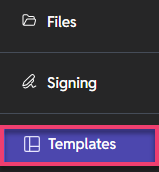
- Click New Template.
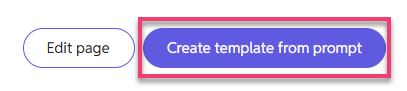
- Then Create template from prompt.
- Complete the fields mentioned below.
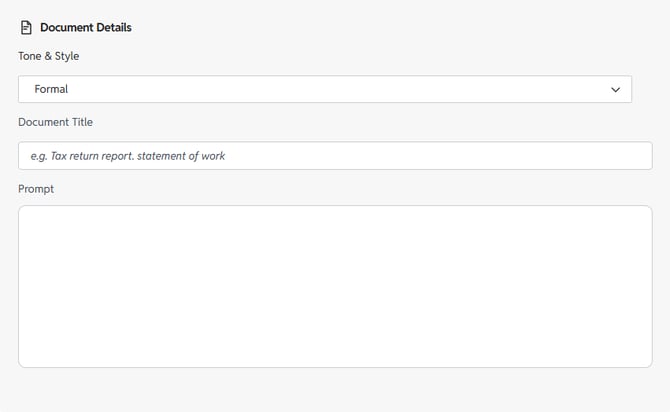
- Tone & Style
- Formal - Structured and precise language suited to official documents and reports.
- Informal - Relaxed, conversational language for internal or casual communication.
- Professional - Clear and polished, balancing authority with approachability.
- Friendly - Warm and personable, keeping things light and easy to read.
- Document Title - This will be the name of the template and also the name of any documents generated using it.
- Prompt - a text instruction passed to the AI that defines the content and/or structure of the output generated for your document.
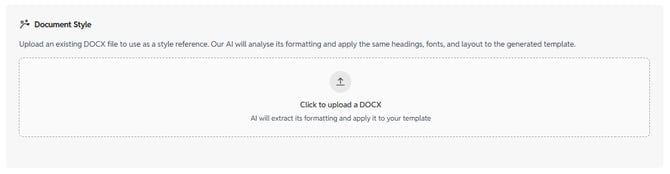
E.g. Generate an engagement letter with a list of services and an area to be signed by me and the client. - Document style - click here to upload a document you've used as a template in the past to have the template generator emulate its style and formatting.
If you would like to learn more about SuiteFiles AI please check out this article.