Please note: You must be a SuiteFiles Admin to create or edit your Custom Branding in New SuiteFiles.
Customers with multiple SuiteFiles sites do not currently have access to this feature. We will advise as soon as this is available.
These steps are for the New SuiteFiles and apply to New Signing only. To see the steps for Legacy SuiteFiles click here.
If you add custom branding in New SuiteFiles, it will not transfer to Legacy SuiteFiles and vice versa.
To customise your branding colours and logo, follow the steps below.
- Click your name in the top right and select Admin Settings:
.png?width=205&height=172&name=image%20(2).png)
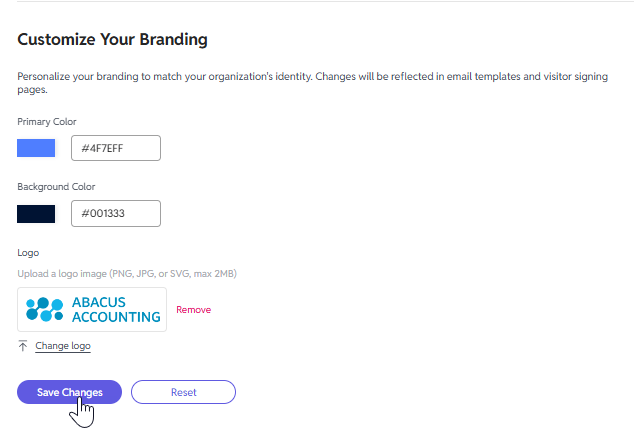
Can't see Admin Settings? If you're a SuiteFiles Admin but cannot see this option, please contact our support team. - Select your primary colour by either entering the HEX code into the field provided, or clicking the current colour button as shown below. The primary colour will be used on buttons and to show selected items. We recommend selecting a darker colour as your primary colour to ensure adequate contrast against the white button text.
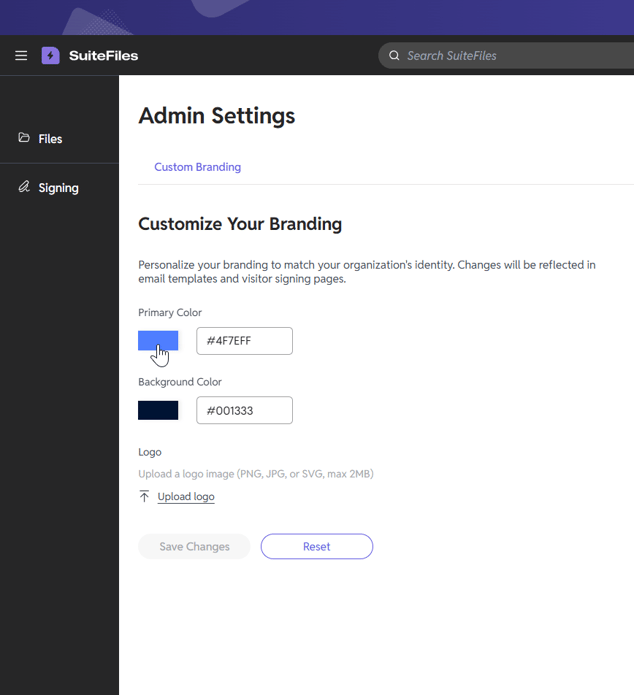
- Repeat these steps for the Background colour, which will be used for the email header and the banner colour for the signing web interface that your recipient sees.
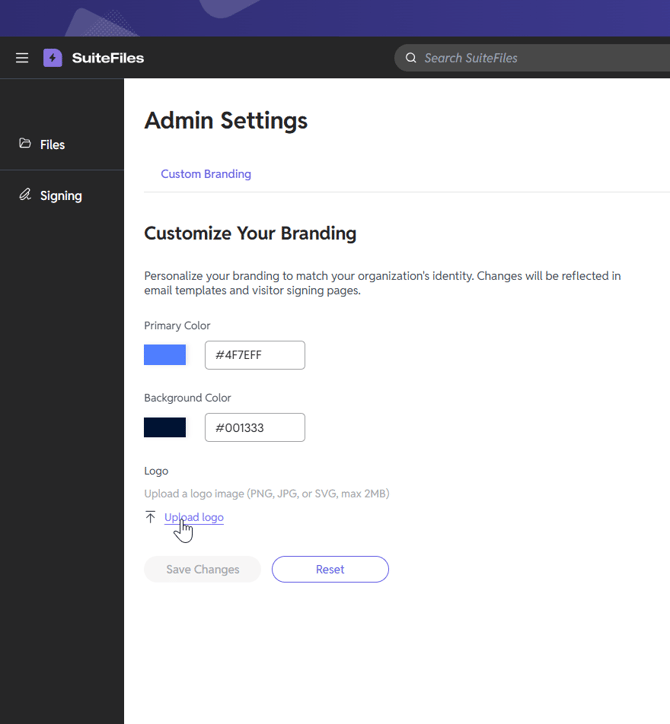
- Upload your logo using the Upload button provided. The logo file must be a .png or .svg, and we recommend it has a transparent background for best results. If no file is chosen, the standard SuiteFiles logo will apply.
- If you want to change your logo, you can do so by clicking Remove and then repeating step 4
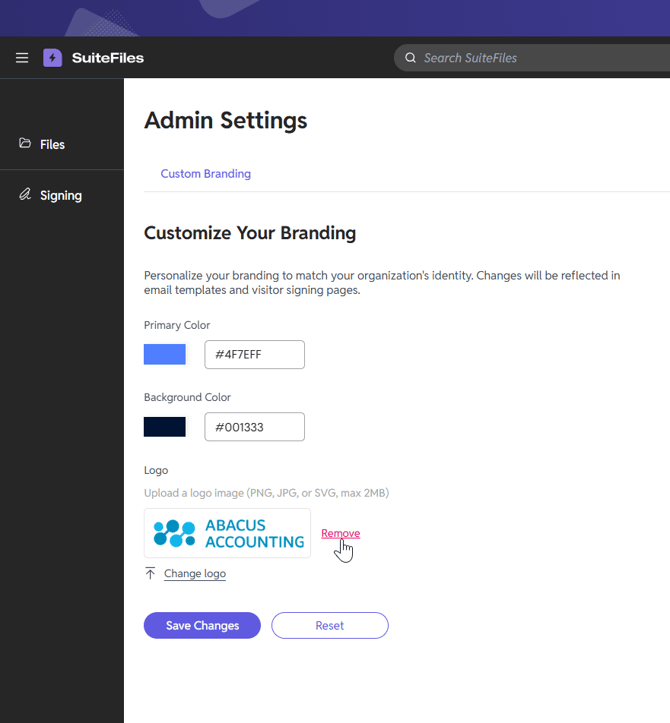
- Click Save Changes at the bottom of the page.
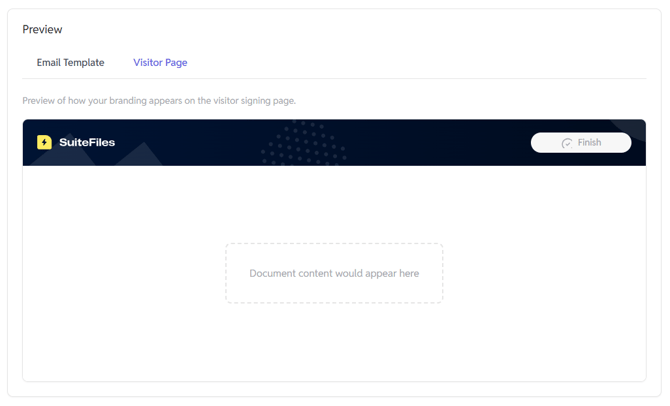
- On the right of the Custom branding screen, you can see a live preview of the Email Template and Visitor Page that your recipients will see:
.png?width=670&height=594&name=image%20(1).png)