
Note: You will see both Copy and Duplicate used in the new SuiteFiles interface. These currently refer to the same action.
How to Copy a single file or folder
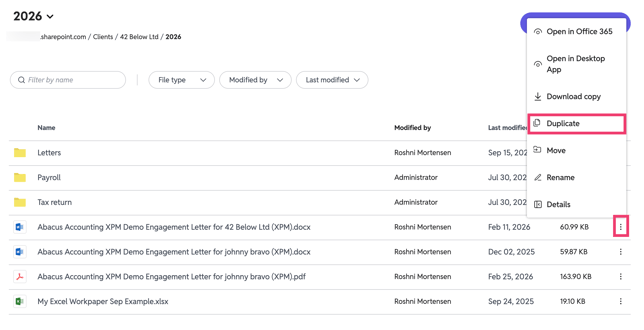
- Click the three dots next to the file name
- Select Duplicate from the menu that appears
-
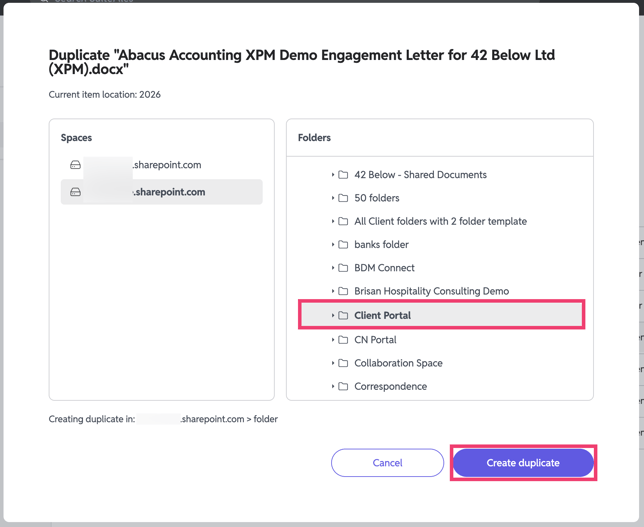
Navigate to the destination folder and click Create duplicate
-
The copied files or folders will save to the selected folder with '1' appended to the name.
How to Copy multiple files or folders
- Hover over one file or folder you want to copy
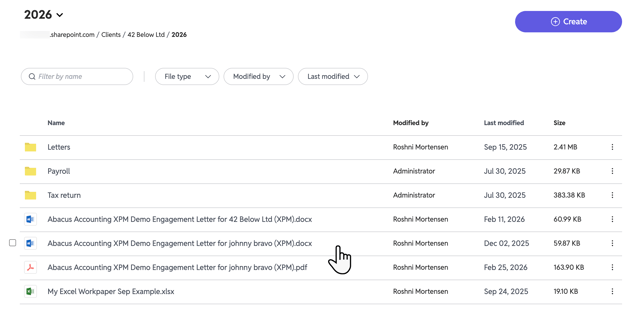
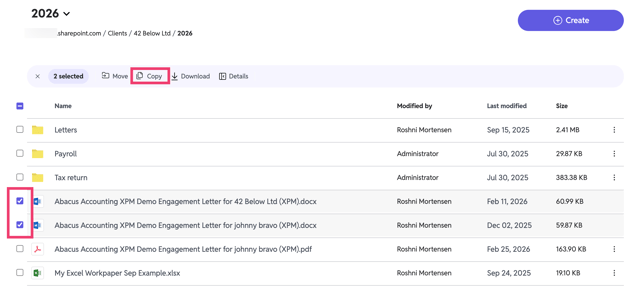
- To the left of the name, a check box should appear. Click the box, and then the box next to any other file or folder you wish to copy
- At the top of the page, select Copy
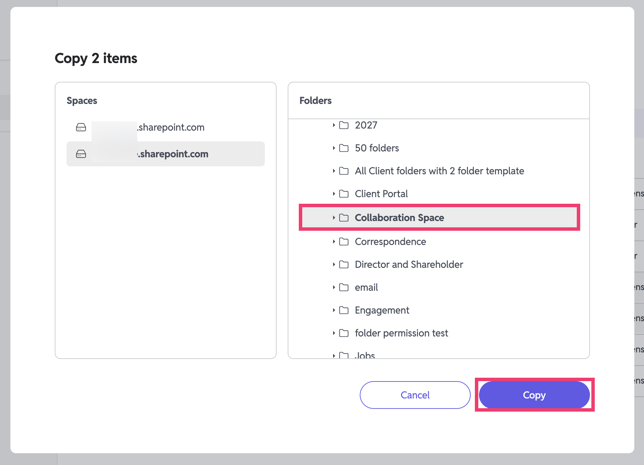
- In the pop-up window, navigate to the folder where you want to move the file/folder to. Find these files by clicking the drop-down arrow to the left of the folder name until you find the desired folder
-
Select the destination folder by clicking the row (anywhere except the folder name)
-
Click Copy
-
The copied files or folders will save to the selected folder with '1' appended to the name.