
Please note: You must be part of the closed BETA currently trialling the new SuiteFiles Outlook Add-In. If you'd like to participate, please contact support@suitefiles.com.
This guide will step you through:
Prerequisites
You'll first need to ensure you have the new SuiteFiles Outlook Add-In enabled. This will have been done either by our support team, or if we could not deploy in your environment for you, we will have sent you the file with steps to self-install.
Once enabled, follow the steps below to login to the new SuiteFiles Outlook Add-In (BETA).
If you have opted into the beta but have not received the installer please contact our support team.
Logging into the SuiteFiles Outlook app in your browser
- Go to https://outlook.cloud.microsoft/mail/
- Click on any email in your Inbox
- You should see a SuiteFiles icon next to your Forward button
/New%20Outlook%20Save%20Icon.jpg?width=455&height=135&name=New%20Outlook%20Save%20Icon.jpg)
Can't see the icon? Try clicking the apps icon and find SuiteFiles in the list/New%20Outlook%20Find%20App%20Icon.jpg?width=632&height=408&name=New%20Outlook%20Find%20App%20Icon.jpg)
- Click the SuiteFiles icon
- Select your region from the SuiteFiles region drop-down
/New%20Outlook%20Choose%20Region.jpg?width=304&height=203&name=New%20Outlook%20Choose%20Region.jpg)
- Select the Sign in with Microsoft button on the right
/New%20Outlook%20Sign%20In%20MS.png?width=238&height=666&name=New%20Outlook%20Sign%20In%20MS.png)
- Follow the prompts to log into SuiteFiles using your Microsoft email and Microsoft password
- If prompted to select your site, select the same SharePoint site that you use to log into SuiteFiles with
- Once successfully logged in, you'll see the Save this email to SuiteFiles screen.
Outlook add-in settings
Head to the settings icon ⚙️ to access your Save rules for the Outlook add-in.
/New%20Outlook%20Settings.jpg?width=205&height=325&name=New%20Outlook%20Settings.jpg)
-
Check the Prompt to save on send box if you'd like to receive a prompt to save your emails to SuiteFiles.
-
Active email threads for Thread tracking (coming soon!) will be available under settings too.
Don't forget to Save changes.
Saving emails into SuiteFiles
You can save emails from your Inbox or Sent Items folders into SuiteFiles. If you'd prefer to use Save on Send, please follow the steps here.
- To save an email from your Inbox or Sent Items into SuiteFiles, select the email you'd like to save
- Click the SuiteFiles icon next to the Forward button
- A screen will appear in a panel to the right of your email
- Select the email content or any of its attached files you'd like to save
- Name this email will display the subject line by default. Overtype this to change the name of the email that gets saved to SuiteFiles
- Next, choose the items you want to save
- Save either the Full email or Email body only from the Email content drop down
- Deselect the Email content check box if you'd just like to save the attachment
- Coming soon! Select Track email thread to save future replies for this email conversation. NB: This feature is currently available in the user interface, but may not yet work as expected. We'll let you know once available to use.
- Under Save location, either navigate through your SuiteFiles folders until you find the folder you wish to save your email and attachment(s) to, or enter a search term into the Search folders... field
-
Click Save.
Attaching files to an email
- Create a new email in Outlook and then click the SuiteFiles icon in the toolbar
- A screen will appear in a panel to the right of your email
- Click Browse & Attach
- Navigate through your folders and then click the three dots to the right of the file
- Select Attach to email
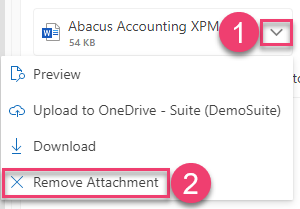
- To remove an attachment, click the arrow which appears to the right of the attachment, then select "Remove Attachment."
Save on Send
You can save emails at the time you send them by using the Save on Send feature. If you'd prefer to manually save each email instead, please follow the steps here.
- Ensure you have the Prompt to save on send check box enabled in Settings
- Create a new email in Outlook
- Enter the subject line. This ensures the Name this email field is automatically populated. You can always change it later
- Click the SuiteFiles icon in the toolbar
- Attach any files stored in SuiteFiles to your email by following these steps
- Next, choose the items you want to save
- Save either the Full email or Email body only from the Email content drop down
- Deselect the Email content check box if you'd just like to save the attachment
- Deselect the Attachments check box if you'd just like to save the email content
- Coming soon! We'll add the Track email thread option to save future replies for this email conversation. We'll let you know once available to use.
- Under Save location, either navigate through your SuiteFiles folders until you find the folder you wish to save your email and attachment(s) to, or enter a search term into the Search folders... field.
- Click Save & Send.
Creating a new folder
- To create a new folder, click the Browse & Attach button
- Click the purple folder icon and enter your folder name in the field provided
- Choose the Save location
- Click Create.