
In this article
-
Does my SuiteFiles Admin need to reconnect our XPM or Karbon integrations?
- Is the new extension compatible with Microsoft Edge?
What is the SuiteFiles Chrome Extension?
Our Chrome Extensions power the functionality you use in XPM and Karbon.
-
In XPM, it drives folder creation prompts and links to documents from Clients, Jobs, and Quotes.
-
In Karbon, it lets you link Work Items to their corresponding SuiteFiles folders.
Until now, we’ve had two separate extensions for these integrations. From this update onward, they’ll be combined into one SuiteFiles Chrome Extension to handle both XPM and Karbon functionality.
This makes setup simpler and smoother, especially for firms using both XPM and Karbon.
Why are you updating it?
The main reason is to support the upcoming XPM interface updates being released by Xero.
The new SuiteFiles Chrome Extension works across both the old and new XPM client views, so you’ll be covered no matter when Xero’s changes reach you.
This change also means our Karbon integration is graduating out of BETA, making it officially part of the main SuiteFiles extension.
Do I need to do anything?
It depends which tools you use:
Using XPM only?
Your existing Chrome extension will automatically update once the new version is available on 20 November. It’ll work in both the old and new XPM client views.
Please note that after your Chrome extension updates, you'll need to log back into it.
You’ll know you’ve automatically updated to the new version when:
- The extension icon updates to the new yellow SuiteFiles logo, and looks like this:
- It’s version 2.0.0 or higher - right click the extension, click Manage extension, and refer to the Version number.
Please note the experience will look a little different after the update. This article covers what to expect, whether you’re on the old or new view in XPM: Using SuiteFiles in XPM after the Chrome Extension Updates (Nov 2025)
Not seeing any XPM client links or prompts after the update?
You'll need to check you're logged in.
- Once you've updated, click the extension and select Log in. This version of the Chrome extension will recognize your SuiteFiles Site URL automatically, but click the drop-down to verify you're logged into the correct site.
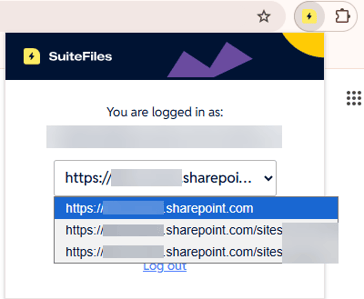
Don't forget to also install the new SuitePrint Chrome Extension following these steps.
Checking your Chrome Extension Options
The SuiteFiles Chrome Extension has an Options page allowing you to customize your preferences.
- Right click the SuiteFiles Chrome Extension
- Select Options
- Review preferences and toggle on/off as required (see below for most common selections)
- Close the SuiteFiles Options tab
- Your new settings will now be applied
Please note: Any changes are applied for this Chrome profile only, meaning each user must adjust their preferences for each Chrome profile they have the extension installed.
Jobs prompts
If you don't want to be prompted each time you create a new Job in XPM, you will need to check the Jobs & Quotes Creation Prompting setting is toggled OFF after the update.
Groups prompts (BETA)
If you have a folder structure like Home > Clients > ABC Group > ABC Company Limited and previously used the Client Grouping Prompts XPM setting in the old Chrome extension, the new SuiteFiles Chrome Extension has been updated to recognize and link these grouped clients correctly. You will need to check the Client Group Prompts XPM setting is toggled ON after the update to ensure your group links work.
Important: Please only toggle the Groups prompt if you have previously used this setting. We have updated how we integrate with XPM Groups for newer customers. Learn more.
Using Karbon only?
You’ll need to install the updated SuiteFiles Chrome Extension.
Each user will need to do this on their Chrome profile.
Installation:
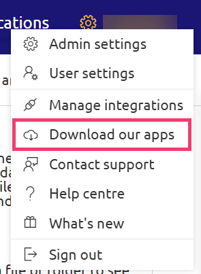
- Go to the download center by clicking on your username in the top right of the SuiteFiles web app
- Click Download our apps:
- Click Download under Chrome Extension
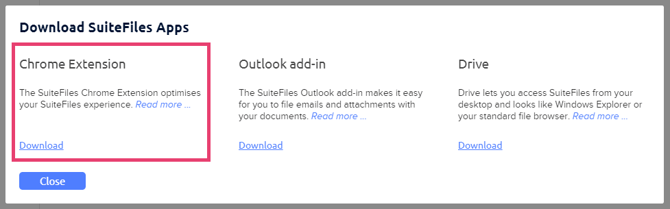
- You will be taken to the Chrome Web Store
- Click Add to Chrome
- Click Add extension
Logging in:
Once installed, you’ll also need to log into it.
- Click on the extension's icon in the top right of the browser, then select the pin next to SuiteFiles

- Click the SuiteFiles icon in the top right of the browser
- Click Login
- This version of the Chrome extension will recognize your SuiteFiles Site URL automatically, but you can click the drop-down to verify you're logged into the correct site in case you have multiple sites.

You can remove the old Karbon BETA extension if you prefer, but we recommend keeping it, as it will soon automatically update to become the new SuitePrint Chrome Extension.
To remove an extension, right click the extension in the top right corner of your Chrome profile, and select Remove from Chrome.
Using both XPM and Karbon?
Make sure users have the SuiteFiles Chrome Extension installed as outlined above; both integrations are now available in this one.
You can remove the old Karbon BETA extension if you prefer, but we recommend keeping it, as it will automatically update to become the new SuitePrint Chrome Extension.
Using SuitePrint?
SuitePrint lets you save files as PDFs directly from other web apps into SuiteFiles.
It’s moving to its own dedicated extension. To keep using it, please install and log into the new SuitePrint Chrome Extension following these steps.
Are there any core features that aren’t available yet?
If you’re using Xero Tax (standalone), the client folder prompt and link functionality isn’t available yet, but it’s planned for a future release.
Does my SuiteFiles Admin need to reconnect our XPM or Karbon integrations?
No, your existing integration settings (under Admin Settings > Manage Integrations) are unaffected by this change.
Your file and email templates will continue to populate correctly, and your contacts from XPM will still feed through for signing and Connect sharing.
All that’s required is that you have the correct Chrome extension installed for your needs.
Is the new extension compatible with Microsoft Edge?
At the time of release, the new SuiteFiles & SuitePrint Chrome Extensions work in Microsoft Edge as well as Chrome. However please note that we are only able to fully support users who are using Google Chrome. If something does not behave as you expect, please try Chrome for the best experience.
Questions?
Please contact our support team for further assistance.